
- LIVE HELP IS

How Do I Create P-Charts in Excel Using SigmaXL?
P-Charts
- Open New York Daily Cycle Time – Discrete.xlsx. This is data from the Sigma Savings and Loans Company, New York location. Each day, the cycle time (in days) for completed loans and leases was recorded. N indicates the number of loans counted. A Fail was recorded if the cycle time exceeded the critical customer requirement of 8 days. Note that we are not recommending that continuous data be converted to discrete data in this manner, but rather using this data to illustrate the use of P charts for Discrete or Attribute data. P Charts (for Defectives) can have fixed or varying subgroup sizes.
- Select SigmaXL > Control Charts > Attribute Charts> P. Ensure that B3:E23 are selected, click Next.
- Select Fail, click Numeric Data Variable (Y) >>; select
N, click Subgroup Column or Size >>. If we had a fixed subgroup size, the numerical value of the subgroup size could be entered instead of Column N. Check Tests for Special Causes.
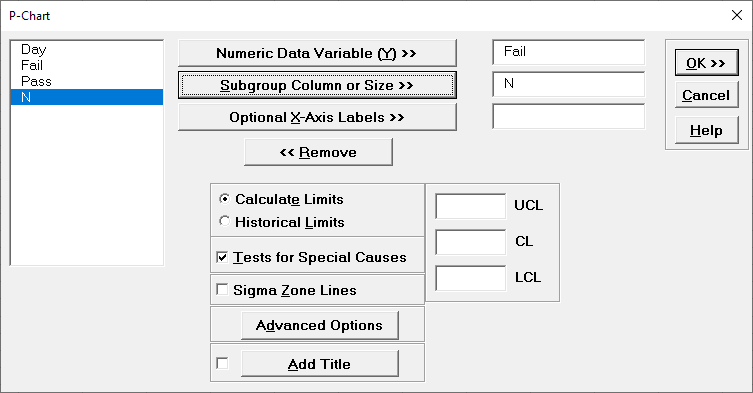
- Click OK. The resulting P-Chart is shown:
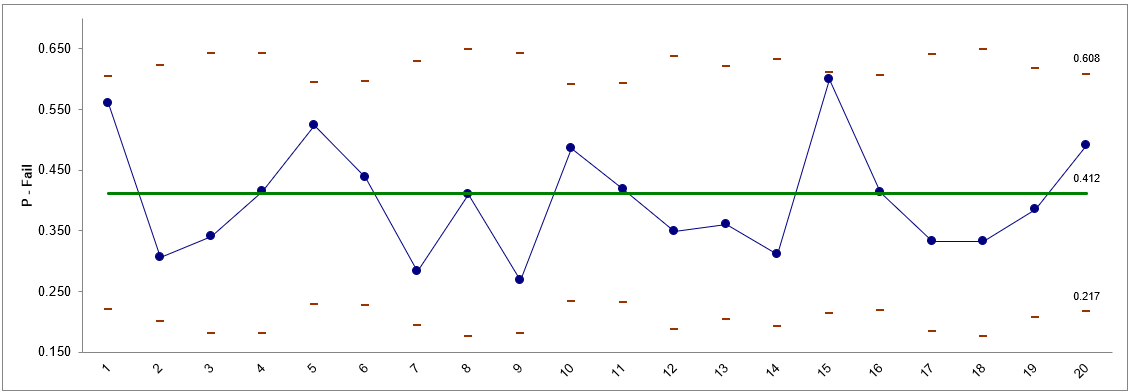
The moving limits are due to the varying sample sizes. While this P-chart shows stability, a much bigger concern is the average 41% failure rate to deliver the loans/leases in 8 days or less!
P-Charts: Advanced Limit Options – Historical Groups
- Open New York Daily Cycle Time Discrete – Before After Improvement.xlsx. Before_After denotes before improvement and after improvement. We would like to use a P-Chart with historical groups to split the limits demonstrating the before versus after improvement.
- Click SigmaXL > Control Charts > Attribute Charts > P. Ensure that the entire data table is selected. If not, check Use Entire Data Table. Click Next.
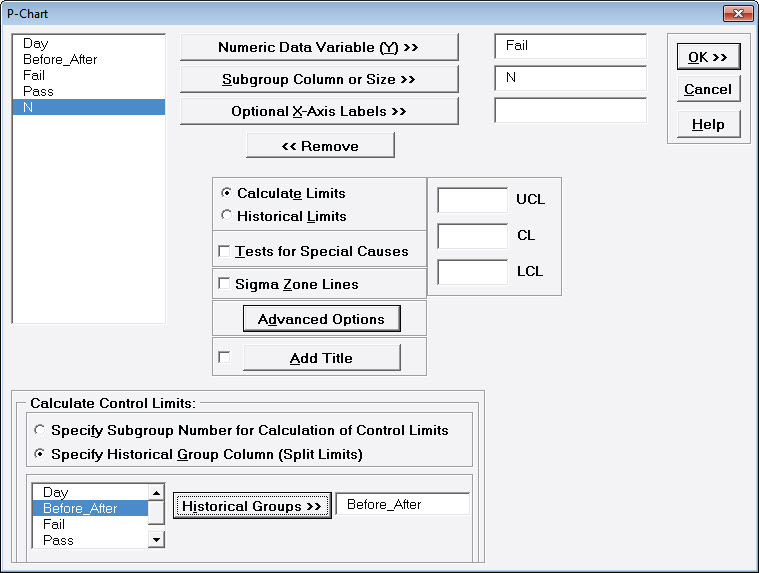
- Select Fail, click Numeric Data Variable (Y) >>; select N, click Subgroup Column or Size >>.
- Click Advanced Options. Select Specify Historical Group Column. Select Before_After, click Historical Groups >>.
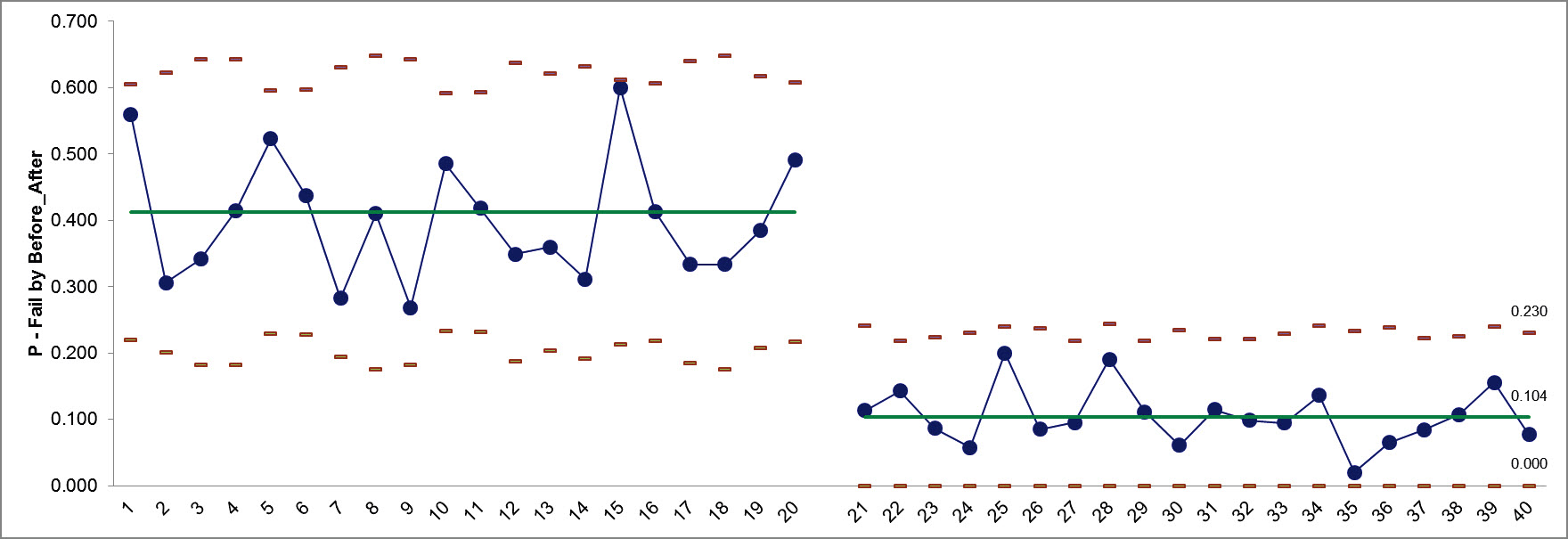
- Click OK. The resulting P-Chart with split limits based on historical groups is shown, demonstrating a clear process improvement:
Define, Measure, Analyze, Improve, Control



Simulate, Optimize,
Realize

Web Demos
Our CTO and Co-Founder, John Noguera, regularly hosts free Web Demos featuring SigmaXL and DiscoverSim
Click here to view some now!
Contact Us
Phone: 1.888.SigmaXL (744.6295)
Support: Support@SigmaXL.com
Sales: Sales@SigmaXL.com
Information: Information@SigmaXL.com


